In my last post Using Text to Speech online tools to create audio files for Arduino projects I had some info about online text to audio sites I have been using to create audio alert files for projects. The files produced by ttsmp3.com seemed to have a lower audio level than I expected. I found I could run all the files through a batch process in Audacity to normalize them. I spent a lot more time trying to find out how to do it so I’m making this quick post so I have the info for next time.
I was running Audacity 2.1.3 which is now an old version. The terminology and location of the feature changed in 2.3.0. Essentially the pre 2.3 version seems to call it ‘chains’ whereas it became ‘macros’ in 2.3. I’ll include info for both as I made notes for the older versions first.
The relevant info is available on the Audacitiy site.
There are two parts to the process
- Create a chain/macro with the processes that will be run during the batch process. This only needs to be set up once.
- Select files and run the task.
There are a lot of other changes that can be included. I’ve also added Mono to one as I found some of my files created another way were stereo and others mono. My project only had a single speaker so I converted them all to mono for consistancy.
Pre 2.3 version
In these versions the batch process is referred to as a chain.
To create a chain
- Go to File
- Select Edit chains…
- Add button
- Set a name, e.g. Normalize to -0.1dB
- Insert Normalize – Tweak settings if desired. I didn’t
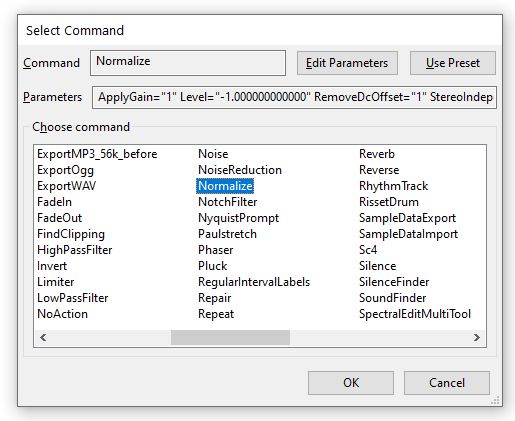
- Insert ExportMP3 – This is required otherwise the files are not saved


To use the chain
- Go to File
- Select Apply chains…
- Select the chain, in my case ‘Normalize to -0.1dB’
- Select Apply to files

- Browse to the file folder and choose files

- Select Open
- Converted files will be placed in a folder called cleaned inside the folder of the selected files
Current version
In later versions it is called a macro.
To create a macro
- Go to Tools
- Select Macros…

- New button
- Set a name, e.g. Normalize
- Insert Normalize. There is also an option ‘Normalize (Macro_Normalize)’ that I have not tried

- Insert Export as MP3 – This is required otherwise the files are not saved

To use the macro
- Go to Tools
- Select Macros…
- Select the macro, in my case Normalize
- Select Files
- Browse to the file folder and choose files
- Select Open
- Converted files will be placed in a folder called macro-output inside the folder of the selected files
Before and after
Here is a before and after shot. The before is the one at the top.

As always, let me know if you find inaccuracies in my info.
 Garry's blog
On my Windows 10 machine, the converted files were saved in the folder \Documents\Audacity\macro-output
LikeLiked by 1 person
Yes, in the Mac version too, with Audacity 3.2.1 the converted files were saved in /Users/[user name]/Documents/macro-output. To change it you have to go to Preferences, Folders anche chose a destination for the “Macro output”.
LikeLike
Thank you.
LikeLike
Thank you. Very helpful!
LikeLike
Hi! In Windows 11 I found that it was saving to my OneDrive Documents/Audacity/Macro-Output folder. So, I inserted a preference command right at the top before the export wave so every time I select Audio for batch convert immediately before saving, I’m presented with the file location dialog in preferences. Hope this helps others.
LikeLike
Hi, thanks for the info. I wasn’t aware that was an option.
LikeLike
Terry Wysocki – you just saved my sanity! Thank you so much.
LikeLike
Great macro. Saved me from having to spend 30+ hours on data inputting!
LikeLike
no tools nor macro in version 2.4.2 audacity for mac
LikeLike
Is it possible to normalize the audio volume of a playlist of songs within the USB Flash Drive which contains them?
LikeLike
Hi Harold. I haven’t tried changing the output directory, but I think it can be done. There is an option in the preferences to set the export directory. Go Edit > Preferences > Directories > Export.
There is an info page here Directories Preferences – Audacity Manual (audacityteam.org)
The relevant bit says:
Macro output
If you set a default folder for Macro output Audacity will create a folder called “macro-output” in that folder and that will be used for exports from Macros.
If you leave the entry for Macro output blank (default setting) Audacity will default to creating a folder called “macro-output” in:
LikeLike
Garry–Thank you SO very much for your prompt response to my query. I shall now screenshot the suggestions in your answer, and follow them to their culmination–hopefully a normalization of audio volume in the playlist of songs in my USB Flash Drive. 🧩
Harold Waggoner
LikeLike